By sc
By sc
Power Query is tool in Excel and Power Bi that is used to transform data.With the use of it we can automate repetitive data cleaning task.In Excel when size of file is large it is very time taking to work with it but using Power Query in Excel we can handle data easily.
How to Use Power Query in Excel:
- To begin with or add power query to excel,Go to Data Tab in excel and click on Get data as shown in image below

- Get data in excel supports CSV,Excel,pdf ,SQL,and many other available data format.
- Click on From file then from excel workbook and select data file from which you want to get data and transform.
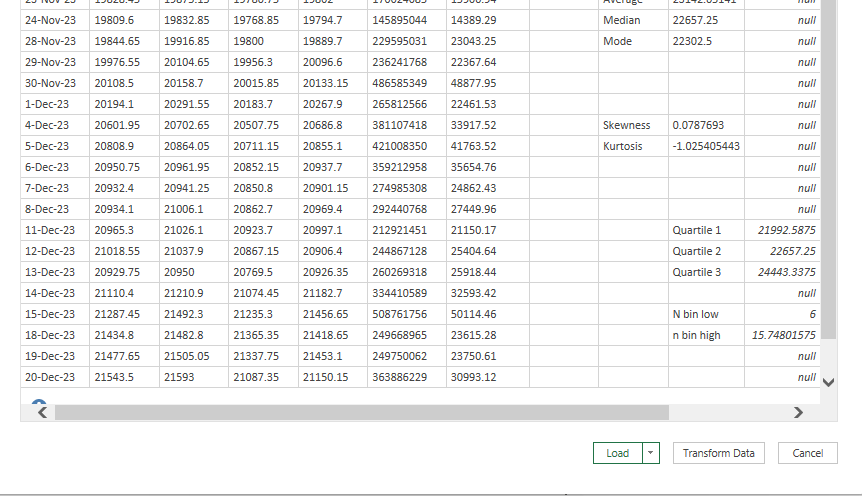
- A window will be open.First few rows of data set will be shown and then click on transform data.
- Now Power query editor will be opened here you can perform data manipulation such as add or remove columns,writing formulas etc.
- We can choose columns and remove columns by clicking on them as shown in image below.
- We can also set first row as headers.

- In conclusion after applying all data transformation click on close and load.Then transformed data will be available in worksheet you can simply update it by clicking on refresh all function in data tab and data will be update.
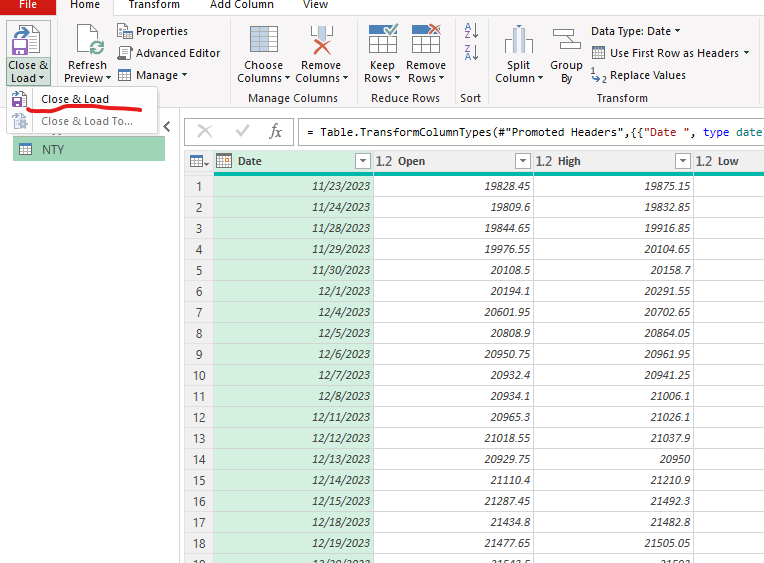
Power query is very useful in automate repetitive task and thus saving lot of time.
Remove spaces from last in Excel
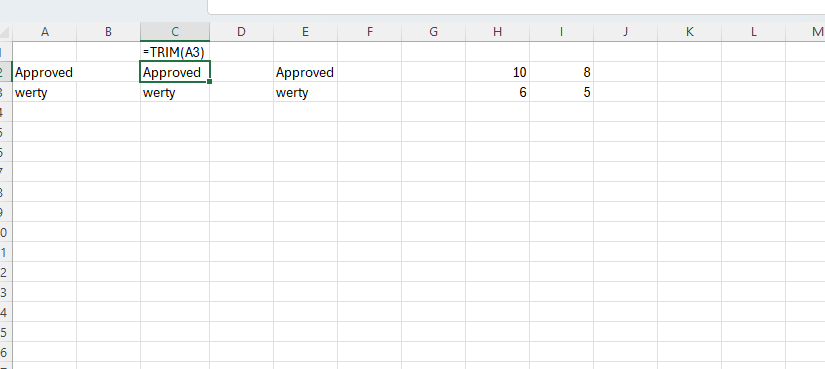
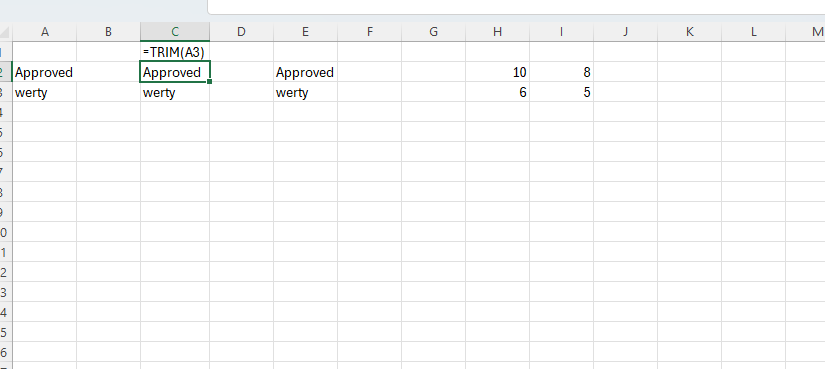
One method to remove spaces in excel is Trim function.By using trim formula in excel we can remove spaces as shown in image below but some times this formula doesn’t work.Then by using power query trim function we can remove extra spaces from last in excel.
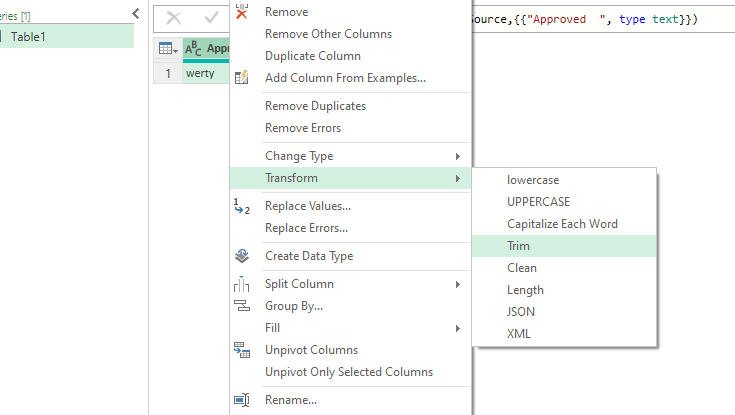
In power query in excel first we get data as describe above then by right clicking on column and click on Transform and then click on trim Then close and load to excel sheet all spaces will be removed.